
Almost Debt Free: Expense Tracking with the Queercents Free Expense Tracker
“There is all of the difference in the world between paying and being paid.” -Herman Melville
 Why expense track? For most of us, money comes in much less often than it goes out. If you want to figure out how to control your money better to keep more of it, expense tracking allows you to see where to cut down on the spending. It takes less than five minutes of data input per day, and just a bit of commitment.
Some people truly hate this practice because it seems high-maintenance or impractical. I used to agree until I became desperate for a way to manage my increased income. Being that I lived as a careless spender all my life, the common sense solution to understand my loose-fisted ways (as someone with a degree in behavior analysis) was to create some sort of picture of my spending patterns with qualitative and quantitative details. Simply put, I needed to track expenses to wake up to the reality that I’m spending more than I make.
I didn’t think asking for an easy-to-use, free expense tracker was such a tall order. But one tiresome afternoon, I became a crazed Goldilocks combing the internet for a simple financial tool that would do a little more than just capture a list of expenses, and a bit less than download my debit and credit card charges into an overly complicated database. All I wanted was a spreadsheet with some nifty sorting and calculating functions. That’s when I decided to make my own expense tracker on MS Excel, which I wrote about as one of my first posts on Queercents.
Six months later, the spreadsheet has changed a bit with some fine-tuning adjustments. I’ve made it simpler to read and manipulate, but it generates surprisingly detailed information. This simple spreadsheet has been so vital to my debt reduction strategy that we at Queercents have decided to make the expense tracker available to our readers during the Almost Debt Free series.
To download, you must have MS Excel on your computer and some familiarity with the program. It doesn’t take much technical skill, but you’ll be working with functions not often used at the beginner level. No need to fear. I’ll do my best to walk you through the trickier sorting and AutoSum functions. [Click here to download the Queercents Expense Tracker. You’ll be asked to confirm your email address, which will be kept strictly confidential and never sold or distributed.]
If you’re not quite ready for Excel, the spreadsheet is available in PDF format so that you can track expenses with pen and paper. The layout of the PDF version allows you to make three-hole punches in copies of the expense tracker and keep the pages in a binder. The PDF is also great for jotting down expenses in real time, and then transferring them to your Excel spreadsheet later.
Once you have the expense tracker downloaded, you’re ready to input data. Let’s go over some guidelines first.
Data Input (Presented in order of columns from left to right)
Date: Keep format in month (00)/day (00)/year (2007) format to allow for sorting purposes later. The Queercents Expense Tracker has a tab for each month.
Categories: Assign a label for each category of expense you make, and make it broad enough to use the label consistently (again, for sorting purposes). Here are typical categories seen in my expense tracking:
- Rent
- Utilities
- Household (laundry machine costs, newspaper subscription, maintenance)
- Transportation (Gasoline, rental car payments, public transportation fares)
- Credit card payment
- Student loan payment
- Eating Out (breakfast, lunch, dinner, snack or coffee)
- Entertainment (Drinks, movies, clubs)
- Groceries
- General Shopping (Clothes, music, books)
- Healthcare (co-pays, medicine)
- Grooming (haircut, dry cleaning)
- Bank fee
- Memberships
- Gifts
- Donations
Cost: Enter dollar amount of expense.
Payment Type: Indicate Cash, Credit, Debit, Check and/or other method of payments.
Monthly Recurring (Y/N): Select Yes or No to help distinguish which expenses are automatically made monthly, either through automatic account withdrawals or routine payment such as rent or mortgage. This gives you an idea of what payments are necessary (ie, housing, utilities), or what payments are automatically made but not useful (such as a Netflix account that’s hardly ever used.)
Description: I typically write a phrase that explains what was purchased, why, where and with whom. For the “Eating Out” category, I make it a point to specify breakfast, lunch, dinner or snack and where I made the purchase to allow the expense tracker to tell me how much I spend on a particular meal in a given month, where I spend it most, and with whom I’m spending.
Now with each new expense you enter, make a new row to keep the Subtotal value two rows below the last expense entered. Once you’ve made your last entry, select the cell to right of “Subtotal.” Then click on the Sigma sign in the Tool Bar, hit enter, and now you have a subtotal for your entries.

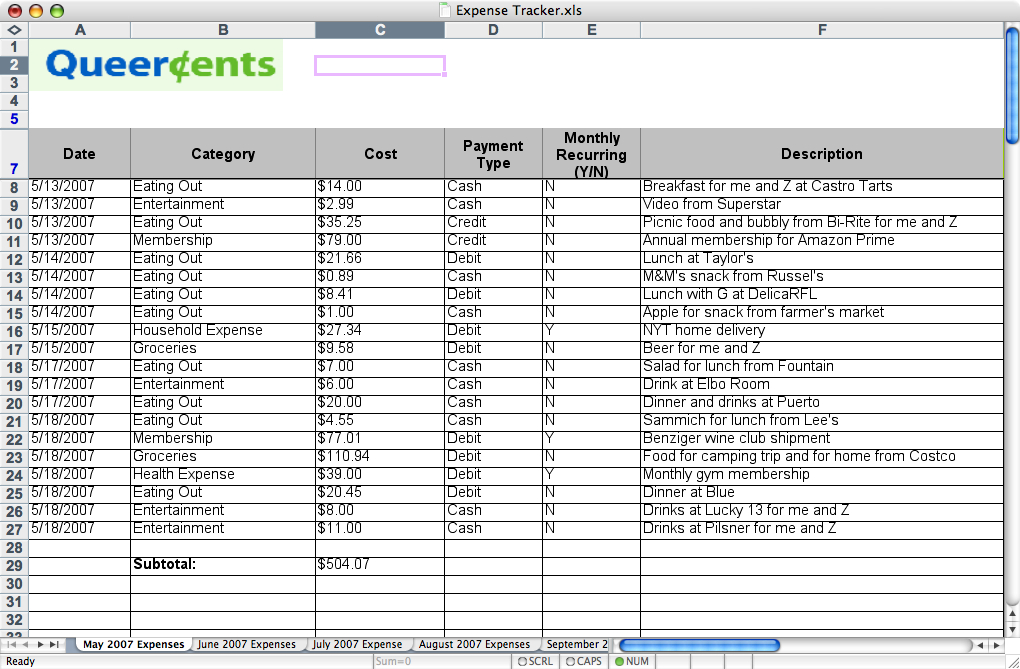
At left is a small sample from my own expense tracker. Click on the picture to get an idea of how data will look.
Sorting and Calculating
Here’s where the expense tracker gets exciting. Excel’s AutoFilter function can help you examine certain spending patterns, such as, but not limited to:
- Money spent on a certain category of expense, like entertainment or shopping
- How much money was spent on credit
- How much money is spent on a particular meal
- How money was spent in a certain time period, or at a restaurant

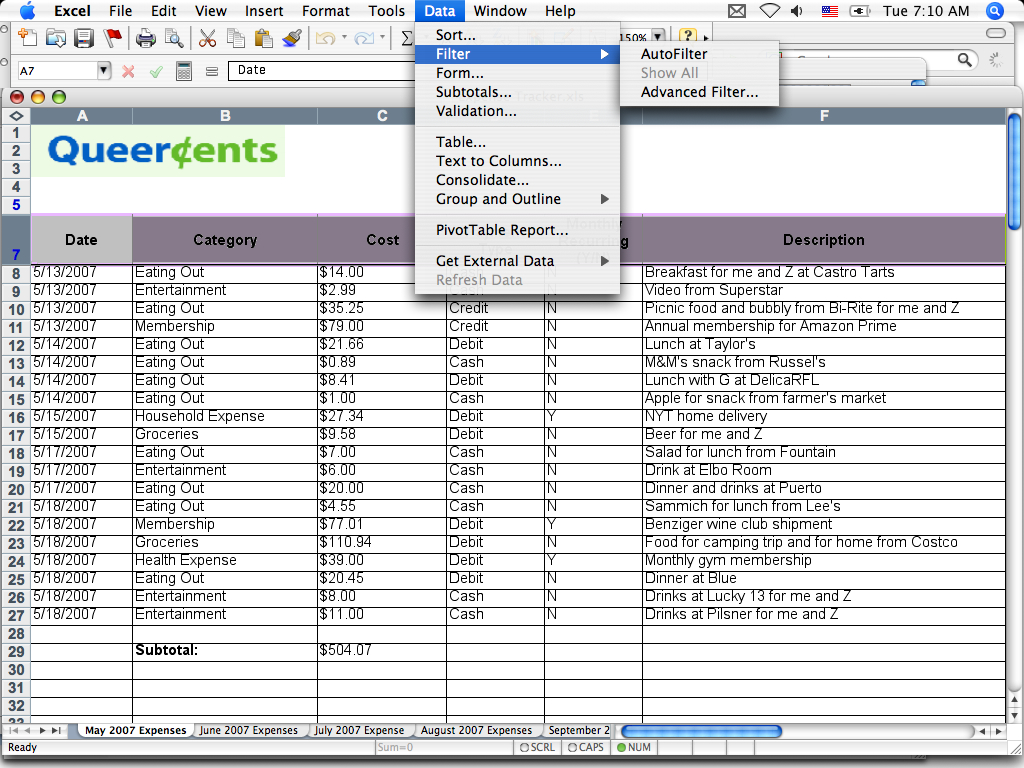
To enable the Auto Filter function, click on Row 7 on the left of the spreadsheet, which highlights the row. Then go to the Data dropdown menu at the top of the screen, and select Filter, then AutoFilter. (Click picture at left to see example).

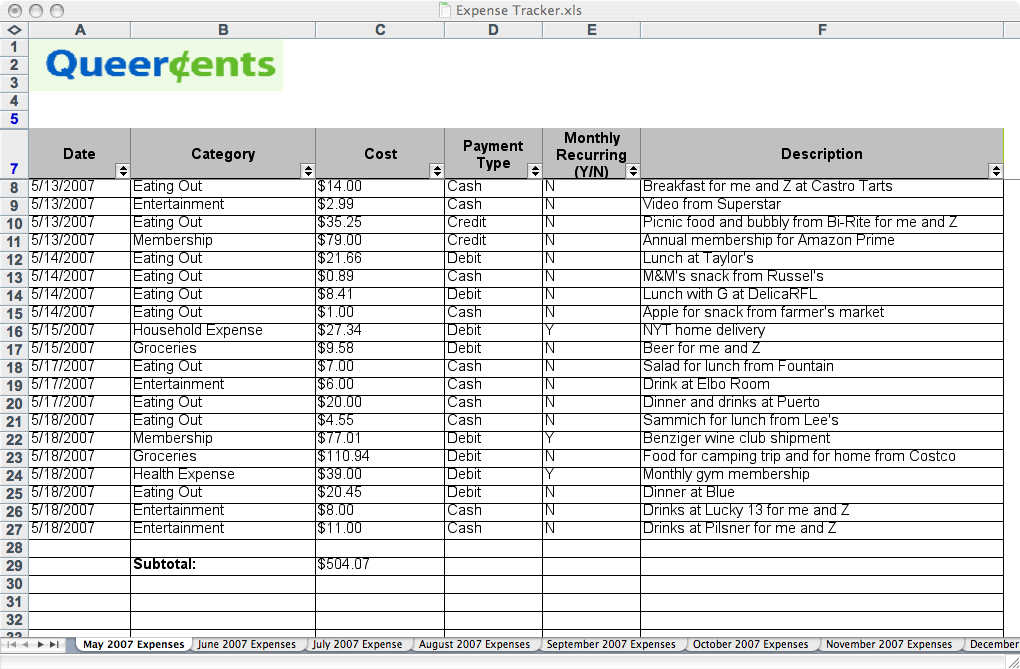
Now you have created arrows for the dropdown menus in the header columns of the expense tracker. (Click picture at left)

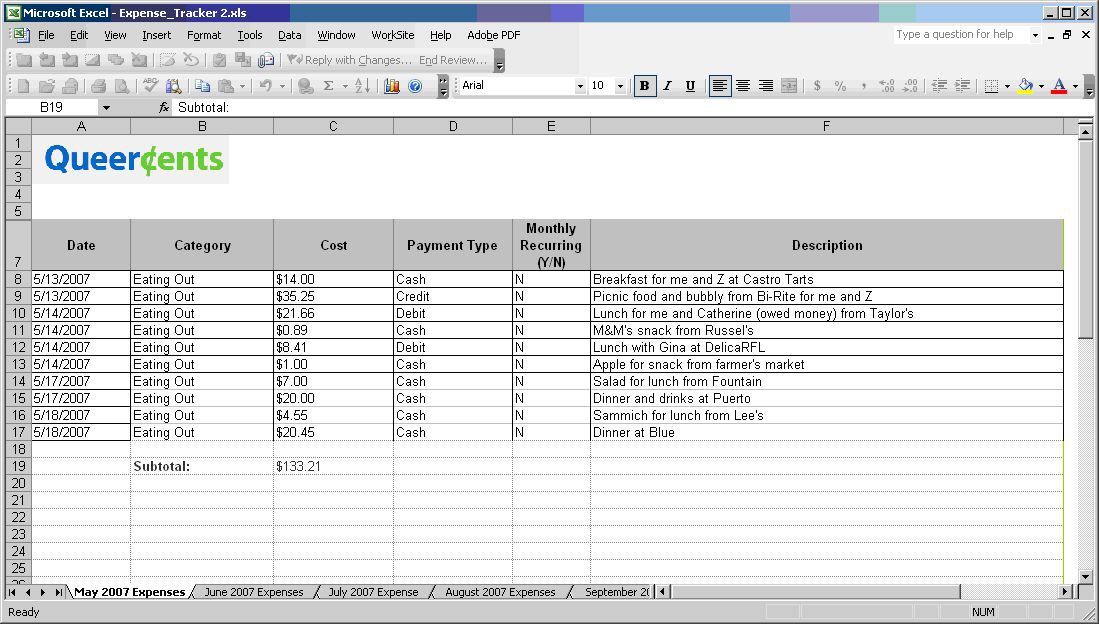
You can now figure out how much you spend on going out to eat, for instance, by clicking on Categories and selecting “Eating Out” from the dropdown menu. The subtotal for this category is automatically calculated for you. (Click picture at left).

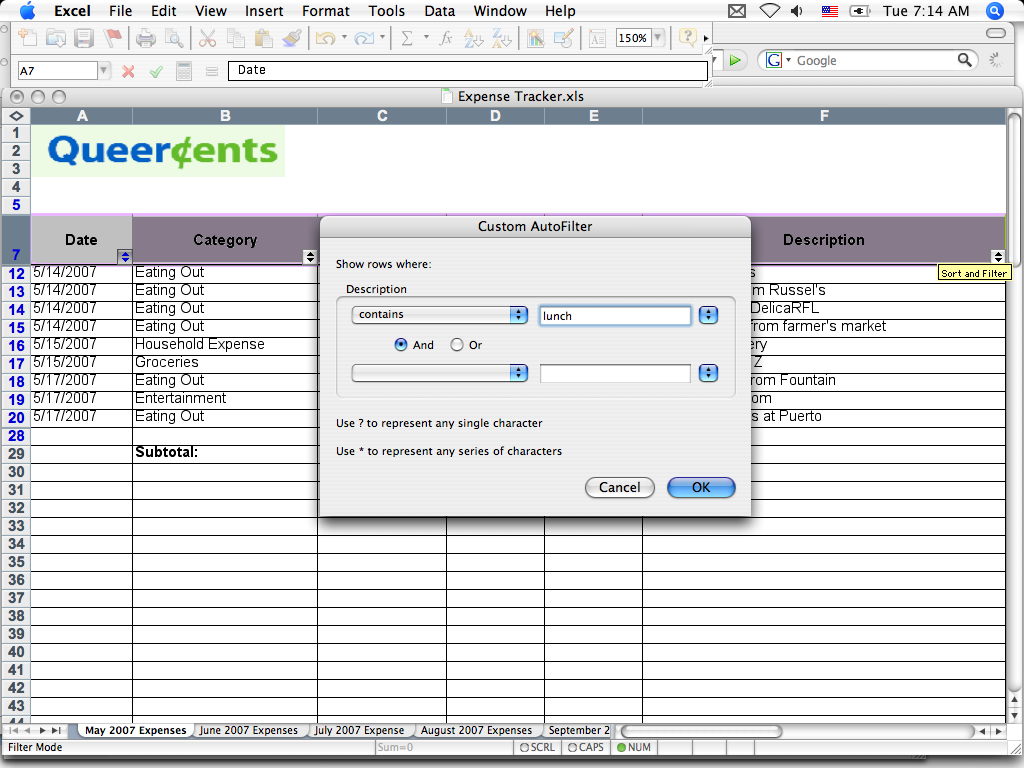
Let’s say you want more detail, like finding out how much money you’ve spent on going out to lunch. You can do that with a custom filter in the dropdown menu of your header column. For this example, go the Description column and select Custom. The following window will pop up. (Click picture at left)

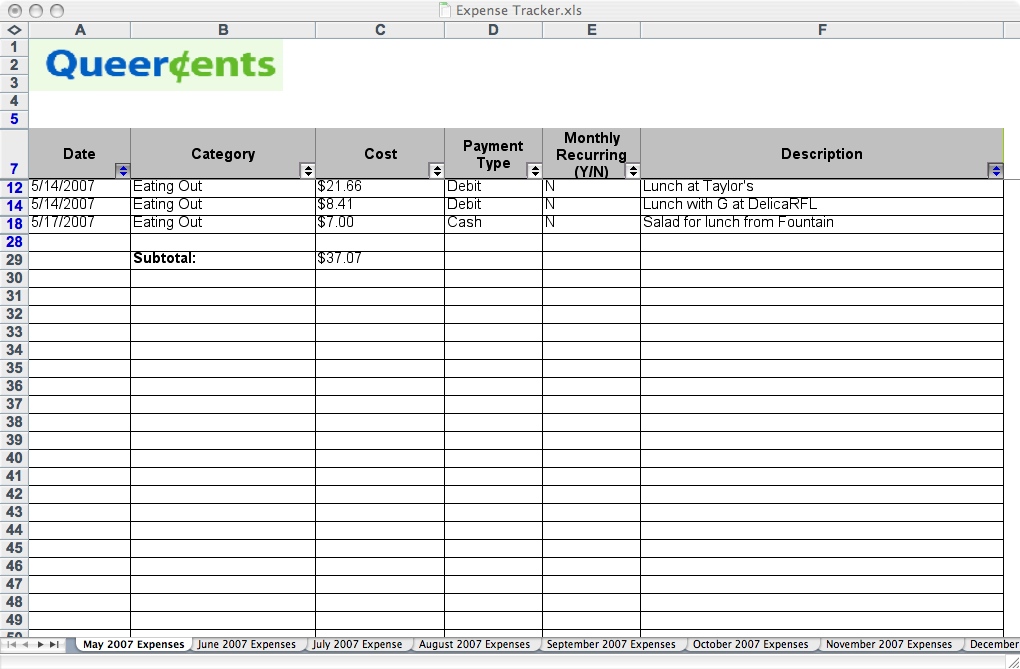
In the Custom AutoFilter window, select the word “contains” from the Description dropdown menu. Then type in “lunch” in the box to the right. You now have a subtotal for money spent on going out to lunch. (Click picture at left)
Now that you know how to use the Custom AutoFilter, you’ve opened the door to calculating other interesting subtotals. But before moving on, make sure you undo your previous filtering. You can do that with Control Z, or by selecting “Show all” from the dropdown menu of the header column (in this case, Categories and Description). Tinted arrows in the header column show which columns had data filtered. Once you have removed filtering, your original subtotal returns.

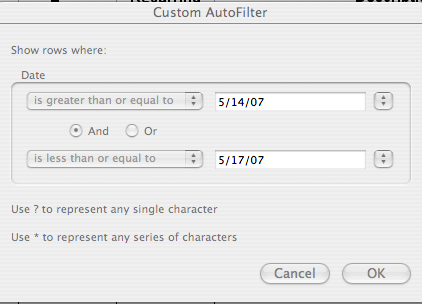
Another great function of AutoFilter is that you can determine money spent in a time period. Go to your Date column and select Custom from the drop down menu. The following window will pop up. (Click picture at left)

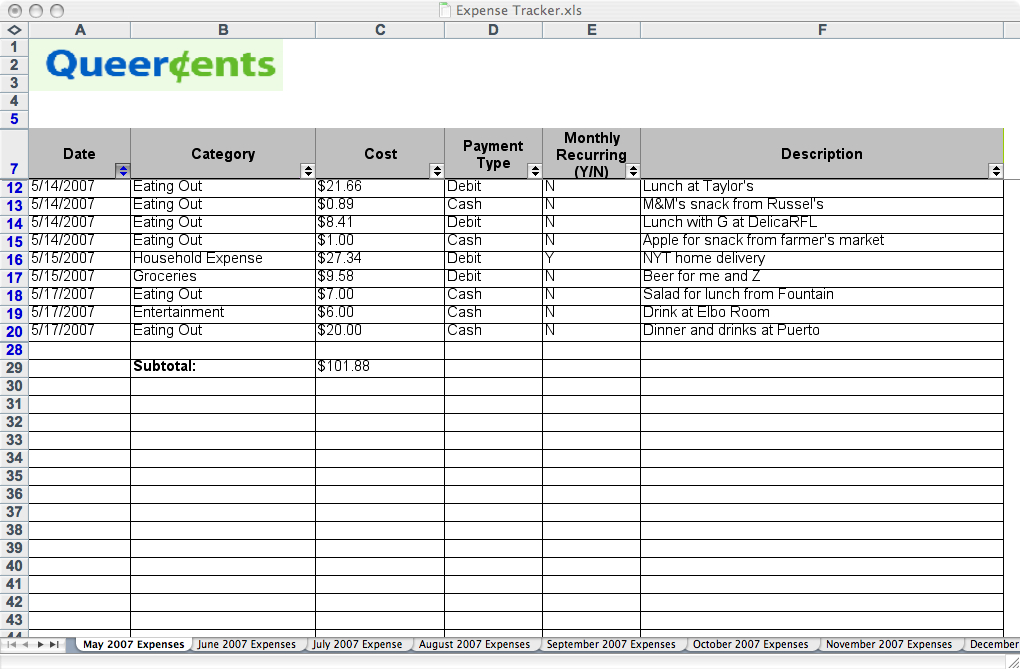
For this example, I chose the period between 5/14/07 and 5/17/07. From the Date dropdown menu, I selected “greater than or equal to” and typed in 5/14/07 to the right. Right below I then selected “less than or equal to” and typed in 5/17/07. Here is the subtotal for money spent in that time period. (Click picture at left)
Tool around with the Queercents Expense Tracker more, and you’ll see how powerful and versatile it really is. By navigating a handful of dropdown menus with a few clicks, you can see trouble areas (or unexpected restraint) in your spending. Becoming familiar with your spending patterns is an excellent way to give you ideas on what you need to budget. And if you already have a budget, a simple expense tracker lets you monitor your rate of spending for a budgeted category.
By all means, there are plenty of applications that can be used with the Queercents Expense Tracker that have yet to be found. If you come across anything interesting that may provide more helpful uses, or if you have tips to improve the expense tracker, please let me know. I will revisit the Queercents Expense Tracker at a later time to troubleshoot or make improvements based on your feedback.
In the meantime, enjoy this opportunity to take greater control of your money with this handy device.

John — Bravo for developing a great budget tool, I am sure it will help a lot of folks. This is a must first step for so many. I got serious about six months ago in developing a budget and a tool. However for me, not only did I need to track my expenses, but I wanted to monitor both my credit car debt (was it going down?) and my investments (going up?). I found that to stay motivated and focused; I had to have the credit card balance up front and visible every time I recorded an expense. I also wanted something simple that would show six months at a time so I could quickly spot trends (e.g., eating out was increasing). Believe it or not, I got this all on one piece of paper (Excel). It has really helped me to stay on task; see the bigger picture while monitoring the little stuff.
Great tool! Thanks for making it available to everyone! I’ve hilighted this as a Post of the day
Will this spreadsheet load into Open Office?
Part of the Carnival of Personal Finance #104:
http://www.financeispersonal.com/2007/06/carnival-of-personal-finance-104.html
I just gave the Queercents Expense Tracker a test-run on Open Office. (Well, Zac did technically, since he uses Open Office. Thanks, dear!)
Anyway, the Expense Tracker does download and work properly on Open Office also! AutoSum and the AutoFilter work like a charm. I had no idea you could do that with free software. Cool!
So it works with OpenOffice… does it work with the Google Spreadsheets?
About Google Spreadsheets:
Since Google Spreadsheets is missing an AutoSum feature, and because I’ve never found the AutoFilter feature, I haven’t tried to open the Expense Tracker in Google Spreadsheets, and wouldn’t recommend it.
I have made a spreadsheet similar to the Expense Tracker on Google Spreadsheets previously, but I had to make do without the sorting capabilities. To get around the lack of AutoSum, I inserted another column to the right of “Monthly Recuring” and labeled it “Running Total,” which became column F.
So let’s say the cost of your first entry is in cell C3. In F3, I entered the formula Sum(C3). Then in the row for the next expense entry, I put the following formula in F4 to automatically add the cost of the expense in C4 to making a running total: Sum(F3+C4). And then I just copied the formula in F4 and pasted it in F5, and a running total is automatically made for subsequent expense entries.
In short, you can track how much money you’re spending on Google Spreadsheets, but from my working knowledge of this program, it’s limited in features compared to MS Excel and Open Office.
Here I thought I was the only person left on the planet using MSExcel to track his entire financial picture–including his taxes. If you are really handy with Excel, you can utilize it to track expenses that have been paid or unpaid as well as income that has or has not been received. In this way, you can determine your net worth now–beginning balance-paid expenses+received income–and you can forecast your next worth–begin balance-all expenses+all income. In addition, when categorizing your expenses, you can include your tax and medical withholdings each paycheck. Then, you can create a simple table to do your tax return.
Hi! I can’t download the expense tracker. The link doesn’t work. It just takes me to static page but no button to click or any form to sign so I can download. Please help.
Thanks!
I should have the link back up next week. We quit paying Aweber to maintain this.. they were too expensive.
Ah! I really want to download this!!!
John – your expense tracker looks great and I’d love to download it! I understand you had to take it down b/c the host was charging too much (a**holes!!) – have you by chance uploaded it to any other forum?
Thanks!!
J.